Two-Factor Authentication: The Seatbelt for Your Online Accounts
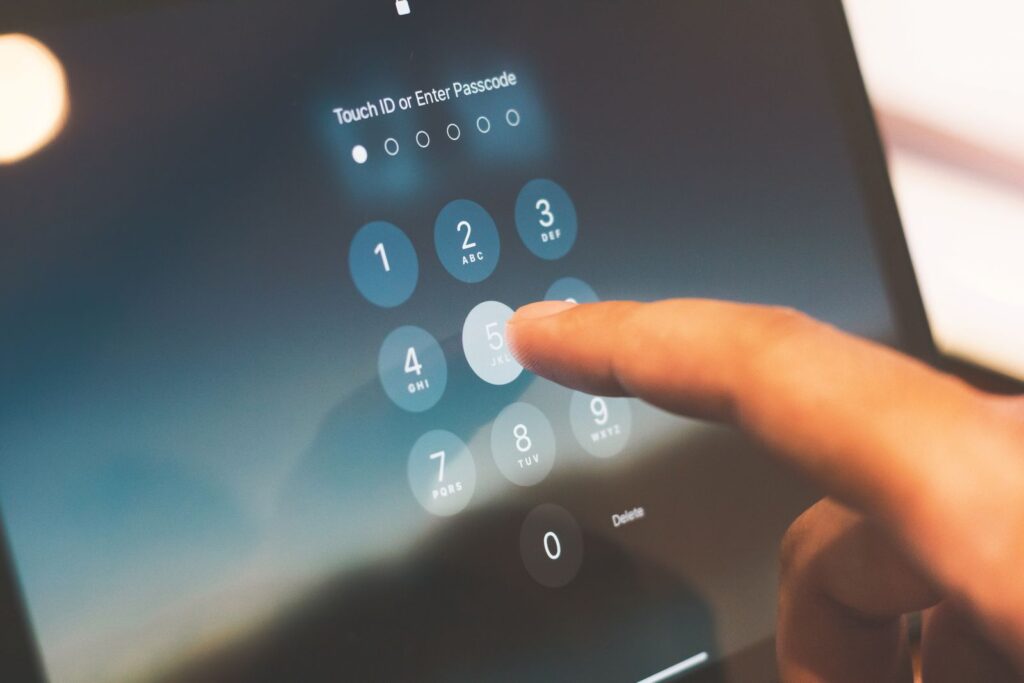
You have probably heard that you should turn on two-factor authentication, also called 2FA or MFA, for your online accounts. Maybe you saw the option in settings and thought, “That sounds responsible, which means it probably also sounds annoying.” Maybe you tried it once and got tired of typing codes. Or maybe you are not entirely sure what it does. Here is the short version: two-factor authentication adds a second check so a stolen password is not enough to walk straight into your account.
Quick takeaway: Two-factor authentication adds a second proof when you sign in, such as an app prompt, code, passkey, or security key. It greatly reduces the risk from stolen passwords, especially on email, banking, and other important accounts.
What This Means in Plain English
Think of two-factor authentication like a seatbelt. A seatbelt does not prevent bad drivers, surprise deer, or that one person merging while balancing coffee and confidence. But it helps protect you when something goes wrong. Two-factor authentication does not prevent every password problem, but it helps stop a stolen password from becoming a full account takeover.
Here is how it works: when you sign into an account with two-factor authentication turned on, you enter your password like normal. Then the website or app asks for a second piece of proof that it is really you. This might be a code from an authenticator app, a prompt you approve on your device, a passkey, or a tap from a physical security key. Without that second step, the password alone does not open the door.
This is why two-factor authentication is so useful. Even if a criminal gets your password from a data breach, guesses it, or tricks you into typing it into a fake login page, they still have another hurdle to clear. In most everyday attacks, they do not also have your phone, authenticator app, passkey, or security key.
Why It Matters
Passwords are useful, but they are asked to do too much by themselves. People reuse them across multiple accounts. They choose weak ones that are easy to guess. Passwords leak in data breaches. Phishing scams trick people into typing passwords into fake websites that look convincing enough to fool careful humans who have other things to do today.
Two-factor authentication helps protect you when the password layer fails. Security agencies and major technology companies recommend it because it can block many common automated sign-in attempts that rely on stolen or reused passwords. It is not glamorous, but neither is a seatbelt. Both are excellent at being boring in your favor.
The accounts that matter most are the ones that hold your money, personal information, or access to other accounts. Your email account is especially important because it is often the reset button for the rest of your digital life. If someone gets into your email, they may be able to reset passwords elsewhere and start knocking over digital dominoes. Protecting email with two-factor authentication is one of the best first moves you can make.
What People Often Get Wrong
Two-factor authentication is usually simpler than people expect, but a few misunderstandings make it feel more irritating than it needs to be:
- It usually does not bother you every time: Many services ask for the second factor mainly when you sign in from a new device, browser, or location. Once your usual device is trusted, the prompts often calm down.
- Your phone is usually enough: The phone you already carry can handle most two-factor methods. You do not need to buy extra gear unless you want stronger protection for high-value accounts.
- It is not the same as a password reset code: A two-factor code helps prove it is you during sign-in. A password reset code is used when you are trying to recover access. They may look similar, but they are doing different jobs.
- It does not make your account unhackable: Two-factor authentication reduces risk, but no single tool solves everything. You still need strong passwords, scam awareness, and devices that are reasonably up to date.
A Real-World Example
Imagine someone gets your email password from an old data breach. They try to sign into your account from their computer. The password works, but then the website asks for a verification code or sends an approval prompt to your phone. You are not trying to sign in, so you tap “No” or ignore it. The criminal is stuck outside, pressing their face against the digital window.
Without two-factor authentication, that same person may have walked right in, changed your password, locked you out, and started resetting passwords for other accounts before you knew anything was wrong. With the second step, you get both protection and a warning light.
Ronin Tip: If you only have energy for three accounts, start with email, banking, and your Apple, Google, or Microsoft account. Those are the big hinges on the digital front door. Secure them first, then work outward.
How to Handle It Safely
Two-factor authentication comes in several forms. Some are more convenient, some are stronger, and some are the security equivalent of “better than leaving the door open.” You do not need to memorize every acronym. You just need to know which options are worth choosing when they appear.
Text Message Codes: Better Than Nothing
Text message codes, also called SMS codes, are the familiar six-digit numbers sent to your phone. When you sign in, the website texts you a code, you type it in, and the account lets you through.
Text message codes are easy and work on almost any phone, including older models. The downside is that text messages are not the strongest option. Criminals can sometimes intercept texts or trick a phone carrier into moving your number to another device, a scam called SIM swapping. That is not the everyday experience for most people, but it is a real weakness.
For most people, text message codes are still much better than no two-factor authentication at all. If SMS is the only option, use it. If the service offers an authenticator app, passkey, push prompt, or security key, consider using that stronger option instead.
Authenticator Apps: Stronger and Still Convenient
Authenticator apps are a step up from text messages. These are apps such as Google Authenticator, Microsoft Authenticator, 1Password, Bitwarden, or Authy that generate short codes on your phone. When you sign in, you open the app, read the code, and type it into the website.
Authenticator apps are stronger than text messages because the codes are generated on your device instead of being sent through the phone network. They can also work without cell service, which is handy when traveling, sitting in a basement, or visiting that one building where signal goes to retire.
The tradeoff is setup. You need to connect each account to the app, and you should save backup codes when offered. Once everything is set up, using an authenticator app is usually quick and routine.
Push Notifications: Fast and Easy
Push notifications are one of the most convenient forms of two-factor authentication. When you sign in, a notification appears on your phone asking if you are trying to access the account. If it is you, approve it. No code juggling required.
The important part is paying attention. If you get a prompt and you are not signing in, do not approve it. Tap “No” or ignore it, then consider changing your password. A random sign-in prompt is your account waving a little red flag.
Some criminals try to flood people with repeated prompts, hoping they will eventually tap “Yes” just to make the buzzing stop. This is called MFA fatigue. If you see repeated prompts you did not request, do not approve them. Report the issue to the service and change your password from a trusted device.
Security Keys: The Heavy-Duty Deadbolt
Security keys are small physical devices, often about the size of a USB drive, that you plug into your computer or tap against your phone when signing in. They are one of the strongest options available because they are very hard to phish or copy remotely.
Security keys are especially useful for high-value accounts such as email, password managers, business accounts, or accounts belonging to people who are more likely to be targeted. Popular options include YubiKey and Google Titan, and the same key can often be used for multiple accounts.
The downside is that you need the key when you sign in, and losing it without a backup plan can create a headache. People who use security keys should usually register at least two keys and keep one in a safe place. Think spare house key, but for the internet.
Security keys are not necessary for everyone, but if you manage sensitive information, run a business, or simply want stronger protection for important accounts, they are worth considering.
Where to Turn It On First
You do not need to spend your entire Saturday turning on two-factor authentication for every account you have ever created, including the one from that recipe site in 2013. Start with the accounts that matter most:
- Your email account: This is the reset button for many other accounts. If someone breaks into your email, they may be able to reset passwords elsewhere. Protect it first.
- Your bank and credit card accounts: These hold your money. Turn on two-factor authentication for every financial account you have.
- Your Apple, Google, or Microsoft account: These accounts control your phone, your computer, your cloud storage, and often your payment methods. They are high-value targets.
- Social media accounts: If someone breaks into your social media, they can impersonate you, scam your friends, or damage your reputation. Turn on two-factor authentication for the social accounts you actually use.
- Cloud storage and file-sharing services: If you store important documents, photos, or backups in Dropbox, Google Drive, iCloud, or OneDrive, protect those accounts with two-factor authentication.
- Work and business accounts: If you use accounts for work, especially email, file sharing, customer information, or financial tools, turn on two-factor authentication. Follow your organization’s policy if one exists.
What You Can Do Today
You do not have to fix everything at once. Start with a few simple steps:
- Pick your three most important accounts: Start with email, banking, and your Apple, Google, or Microsoft account. Those three usually make the biggest difference.
- Sign in and go to security settings: Look for options like “Two-factor authentication,” “Two-step verification,” or “Multi-factor authentication.” Most services put this in the security or account settings.
- Choose a stronger option when available: Prefer authenticator apps, push prompts, passkeys, or security keys over text messages when the service supports them.
- Save your backup codes: Store recovery codes in your password manager or somewhere physically safe. They are boring until your phone takes an unexpected swim.
- Test it once: Sign out and sign back in after setup so you know what to expect next time.
When to Get Help
If you are not comfortable setting up two-factor authentication on your own, ask for help. A family member, friend, or trusted tech person can walk you through the first account. Most banks, email providers, and major services also have official step-by-step guides. Use those instead of random search results that may lead you into the internet weeds.
If you lose access to your phone or your two-factor method stops working, do not panic. Most services have recovery options. This is why backup codes matter. If you did not save them, contact the service’s official support team. Recovery may take time because the company needs to make sure you are really you, not someone wearing a fake mustache and holding your email address.
The Bottom Line
Two-factor authentication is not perfect, but it is one of the most practical security upgrades available for everyday accounts. It helps protect you when passwords leak, get reused, or land on a fake login page. It usually takes only a few minutes to set up, and once it is working, you may barely notice it.
You do not need to turn it on everywhere at once. Start with the accounts that matter most: email, banking, and your main Apple, Google, or Microsoft account. Once those are protected, add two-factor authentication to other accounts over time.
Think of it like putting on a seatbelt. It is a small habit that makes a big difference when something goes wrong. It may not be exciting, but exciting is not what we want from account security. Calm, boring, and effective will do nicely.
Want a Hand From a Local Tech?
If you would rather have someone set this up with you, that is what we do. Technology Ronin offers friendly small business IT support for homes and small businesses in the Denver metro and surrounding areas, onsite or remote.
Quick Questions
Is an authenticator app better than text-message codes?
Usually yes. App codes are harder to intercept or SIM-swap than text messages.
Where should I turn on 2FA first?
Your email, your banking, and your Apple, Google, or Microsoft account.
Helpful Resources
For readers who want to learn more, these trusted resources are a good place to start: