Passkeys: The “No Password” Login That’s Finally Arriving
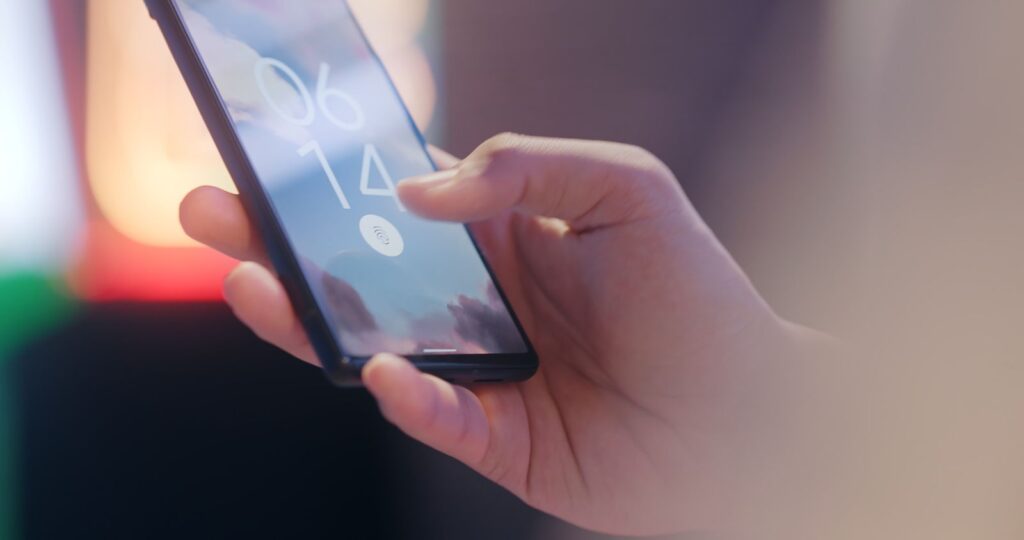
You may have noticed a new sign-in option showing up on websites and apps: use a “passkey” instead of typing your password. Google offers it. Apple offers it. Microsoft, Amazon, PayPal, and many banking apps are rolling it out. The name sounds like something a locksmith and a software engineer invented over lunch, but the idea is friendlier than it sounds. If you are wondering what passkeys are, whether they are safe, and whether you should use them, you are in very good company.
Quick takeaway: Passkeys replace the password you type with a secure digital key stored on your device or in your password manager. They are easier to use once set up, harder for scammers to steal, and worth trying when a trusted website or app offers them.
What This Means in Plain English
A passkey is like a digital house key that lives on your phone, tablet, computer, or password manager. When you visit a website or app that supports passkeys, the site asks your device, “Do you have the right key?” Your device proves that it does, and you are signed in.
You do not type a password. You do not wait for a text message code. You simply unlock your device the way you already do: fingerprint, face, or PIN. Think of it this way: with a traditional password, you are saying a secret phrase through the door and hoping nobody nearby is taking notes. With a passkey, your device quietly shows the right key, the door opens, and the secret never has to be spoken out loud.
Why It Matters
Passwords have had a long career, and frankly, they look tired. People reuse them across multiple accounts. They forget them. They save them in places that are convenient but not exactly Fort Knox. Criminals steal passwords in data breaches, guess weak ones, or trick people into handing them over through phishing scams.
Passkeys help solve several of those problems at once. Because the private part of the passkey stays on your device and is not typed into a website, there is much less for a scammer to steal or trick you into revealing. A fake login page cannot capture a passkey the same way it can capture a password, because you are not typing the secret into the page.
For most people, passkeys are both safer and more convenient than passwords. That is a rare treat in cybersecurity, where the usual bargain is “more secure, but now you need three extra steps and a small ceremonial dance.”
What People Often Get Wrong
Passkeys are new enough that they can sound mysterious, like a password wearing a tiny cape. A few points are worth clearing up:
- Passkeys are not passwords or passphrases: A password is something you type. A passkey is a secure digital key your device uses behind the scenes. You do not see it, type it, or memorize it.
- Passkeys are not text message codes: You do not receive a passkey by text or email. It lives on your device or in a supported password manager and works when you unlock your phone or computer.
- Losing a device does not automatically mean losing every account: Many passkeys are backed up through your Apple, Google, Microsoft, or password manager account, so they can move with you when you replace a device.
- Passkeys do not replace your password manager overnight: Many websites still require passwords. Keep your password manager tidy because the internet is not replacing every old lock at the same time.
A Real-World Example
Imagine you are signing into your bank’s mobile app. The old routine might involve opening the app, typing your username and password, waiting for a text message code, copying the code, and hoping autocorrect does not somehow become involved. With a passkey, the app asks you to unlock your phone with your fingerprint, face, or PIN. You do, and you are signed in.
The same idea works on your computer. You visit a website, click “Sign in with a passkey,” and your computer asks you to confirm that it is really you. No password treasure hunt. No six-digit code hiding in your messages. Just a quick check and you are in.
Ronin Tip: Try passkeys first on an account you use often but understand well, such as Google, Apple, Microsoft, Amazon, or PayPal. Do not start with the account that already makes you nervous. New security habits are easier when the first attempt does not feel like defusing a toaster.
How to Handle It Safely
Passkeys are designed to be secure by default, but they still work best when you understand where they live, how they are backed up, and what to do if something changes. The good news is that the setup is usually less dramatic than the name suggests.
Where You Will See Passkeys
Passkeys are showing up on major platforms and services. You may already see them offered by Google, Apple, Microsoft, Amazon, PayPal, eBay, Best Buy, and some banking or financial apps. Password managers like 1Password, Bitwarden, and Dashlane also support passkeys, which can make them easier to use across different devices.
When you sign into an account, look for options like “Sign in with a passkey,” “Use passkey,” or “Set up a passkey.” If you see one of those choices, the service is offering a newer lock for that account. You can usually add the passkey while keeping your existing password as a backup sign-in method.
How to Set Up a Passkey
Setting up a passkey is usually straightforward. Sign into your account the normal way, go to security or account settings, and look for an option to create a passkey. The website or app will guide you through the process, which usually involves unlocking your device once to confirm. After that, the passkey is saved for next time.
If you use a password manager that supports passkeys, you may be able to save the passkey there instead of directly on one device. That can be helpful if your digital life involves a phone, a laptop, a tablet, and at least one device you keep promising to clean up “this weekend.”
What Happens If You Lose Your Device
Most passkeys are designed to be backed up through the account or password manager that stores them. On Apple devices, passkeys can sync through iCloud Keychain. On Android, they can sync through Google Password Manager. On Windows, they can be tied to your Microsoft account. When you sign into a new device with the same account, your passkeys may come with you.
If you store passkeys in a password manager, they are usually available from devices where you use that password manager. This can make recovery simpler, especially if you move between different brands of devices.
This is why your Apple, Google, Microsoft, or password manager account deserves the good lock. Use a strong password or passphrase, turn on multi-factor authentication, and keep recovery information current. A passkey is strong, but the account that stores it should not be guarded by a password you last changed during the flip-phone era.
What You Can Do Today
You do not have to fix everything at once. Start with a few simple steps:
- Check your major accounts: Look in the security settings for Google, Apple, Microsoft, Amazon, PayPal, or banking accounts to see whether passkeys are available.
- Try one passkey first: Pick an account you use often and set up a passkey. Give yourself a low-pressure test drive before converting every account in sight.
- Protect your device unlock: Passkeys rely on your device’s unlock method, so use a strong PIN, fingerprint, or face unlock. A passkey protected by 1234 is wearing a very tiny helmet.
- Update your password manager: If you use a password manager, check whether it supports passkeys and make sure the app is current.
- Keep your passwords for now: Even after setting up passkeys, keep your existing passwords in your password manager. You may still need them for recovery or older devices.
When to Get Help
Passkeys are designed to be simple, but there is no trophy for figuring them out alone while muttering at a settings screen. If you are not comfortable setting one up, ask a family member, friend, or trusted tech person to walk through the first one with you. You can also use official support articles from the service you are trying to secure.
If you are worried about losing access, review account recovery before you begin. Make sure your backup email address, phone number, and recovery codes are current and stored safely — and because recovery so often runs through your inbox, keep your email account locked down too. Recovery settings are not exciting, but neither is a spare tire until you need one.
The Bottom Line
Passkeys are not magic, and they will not replace every password by next Tuesday. But they are a genuine improvement in how we sign into accounts: safer, faster, and easier for most people once the setup is done. You do not need to rush through every account, but when a trusted website or app offers passkeys, it is worth considering.
For now, think of passkeys as a helpful new key on the ring, not a homework assignment from the internet. Try them when you are ready, keep your password manager in good shape, and make sure your recovery information is current. Future you, signing in without rummaging for a password, may be pleasantly surprised.
Want a Hand From a Local Tech?
If you would rather have someone set this up with you, that is what we do. Technology Ronin offers friendly home IT & tech support for homes and small businesses in the Denver metro and surrounding areas, onsite or remote.
Quick Questions
Are passkeys safe?
Yes. The secret never leaves your device, so a fake login page cannot capture it the way it can steal a typed password.
Do passkeys replace my password manager?
No. Keep it. Many sites still use passwords, and most password managers can store passkeys too.
Helpful Resources
For readers who want to learn more, these trusted resources are a good place to start: