Backups: The Tech Safety Net You’ll Be Glad You Set Up Before Disaster Strikes
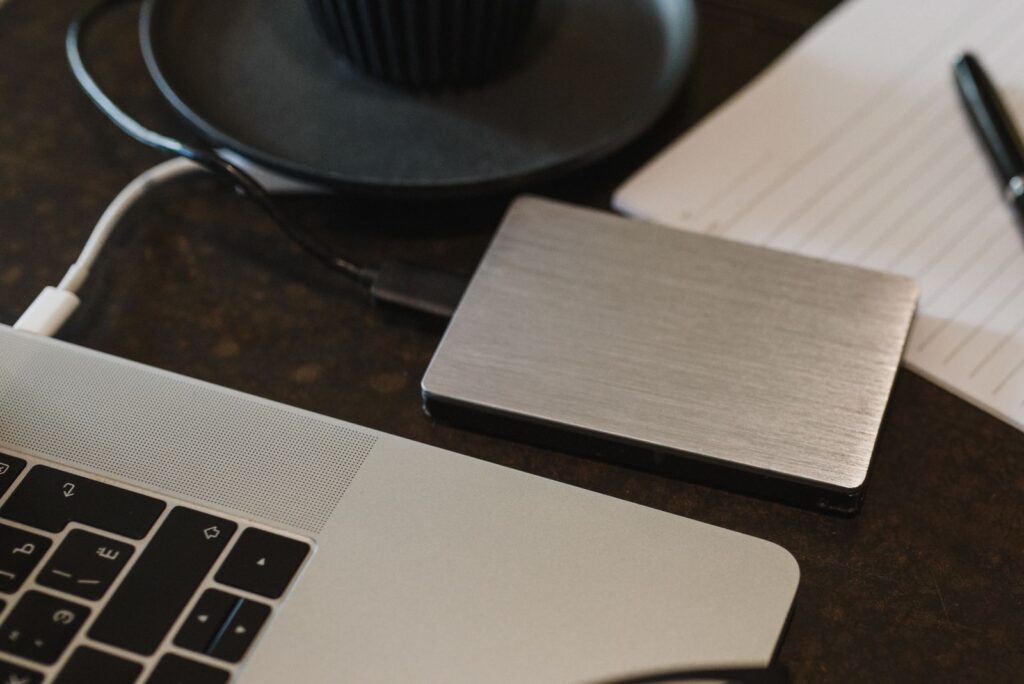
Backups are one of those tech chores that feel easy to postpone, right up until a laptop dies, a phone goes swimming, or an important folder vanishes into the digital cornfield. The good news is that a solid backup plan does not have to be complicated. It just needs to protect the files you would truly miss: family photos, tax records, business documents, recipes, creative projects, school papers, and all the little digital bits that quietly become part of your life.
Quick takeaway: Syncing keeps files convenient across devices, but backups help protect you when something goes wrong. The best backup is automatic, includes more than one copy, and gets tested before disaster taps you on the shoulder.
What This Means in Plain English
A backup is simply an extra copy of your important data stored somewhere safe. If your computer breaks, your phone is lost, a file is deleted, or malware scrambles your documents, a backup gives you a way to recover.
Think of it like having a spare house key. You hope you do not need it, but when you do, you are very glad it exists. A backup is the spare key for your digital life.
Backups can live on an external hard drive, a network storage device, a cloud backup service, or another protected location. The exact tool matters less than the habit: your important files should exist in more than one place, and at least one copy should be protected from everyday mistakes.
Why It Matters
Most people do not realize how much of life now lives on phones and computers until something disappears. Photos from a child’s birthday, years of business invoices, a nearly finished novel, medical paperwork, family history scans, and tax documents can all feel boring right up until they are gone.
Backups also matter because data loss is not always dramatic. Sometimes the computer does not burst into sparks like a movie prop. Sometimes a folder gets deleted by accident. Sometimes a file syncs incorrectly. Sometimes a drive quietly fails. Sometimes ransomware locks your files and asks for money. Sometimes the dog knocks coffee into the laptop because the dog is committed to chaos.
A reliable backup plan reduces the risk that one bad moment becomes a permanent loss.
What People Often Get Wrong
The most common misunderstanding is thinking that cloud syncing is the same thing as a backup. Services like iCloud, Google Drive, OneDrive, and Dropbox are useful, but they are often designed first for convenience: keeping the same files available across your phone, tablet, and computer.
- Syncing mirrors changes: If you delete a file on one device, that deletion may sync to the others. That is convenient when you meant to delete it and less delightful when you did not.
- Cloud storage can still be affected by mistakes: Accidental deletion, overwritten files, account problems, and ransomware can sometimes spread through synced folders.
- Version history is helpful but not a full plan: Some services let you restore older versions or recently deleted files, but limits vary by service, account type, and time period.
Cloud syncing is not bad. In fact, it is wonderfully useful. Just do not let it be your only safety net. A trampoline is fun, but you still want padding around the edges.
A Real-World Example
Imagine a small business owner who keeps client documents in a synced folder so they can work from a desktop computer and a laptop. One day, a folder is accidentally deleted while cleaning up old projects. Because syncing works quickly, the deletion appears on both devices. If the owner notices right away, the cloud service’s deleted-items folder may save the day. If they do not notice for a few weeks, recovery may be harder.
Now imagine that same owner also has an automatic cloud backup service and a weekly external drive backup that is unplugged after it runs. Suddenly, the situation is much less stressful. Instead of panic, the task becomes, “Which backup has the version I need?” That is a much better question to answer while drinking coffee.
Ronin Tip: If a file would make you say words unsuitable for a family restaurant if it disappeared, it deserves a backup.
How to Handle It Safely
A simple backup mindset is: one local, one cloud, one unplugged or protected. This is a friendly version of the classic backup idea that important data should have multiple copies in different places.
Keep One Local Copy
A local backup is stored nearby, often on an external hard drive. It can be fast to restore from and does not depend on your internet connection. On Windows, built-in backup tools can help. On a Mac, Time Machine is a common option. The important part is choosing a drive with enough space and letting the backup run regularly.
Keep One Cloud Copy
A cloud backup stores copies of your files away from your home or office. This helps if theft, fire, flood, or hardware failure affects your devices. A dedicated cloud backup service is different from simple file syncing because it is usually designed to preserve backup history and restore files after problems.
If you already use iCloud, Google Drive, OneDrive, or Dropbox, review what they actually protect, how long deleted files are kept, and whether version history is available. These tools can be part of your plan, but they should not be the entire plan for irreplaceable files.
Keep One Copy Unplugged or Protected
An unplugged backup is an external drive that is disconnected after the backup finishes. This matters because ransomware and other malware can sometimes reach drives and folders connected to your computer. If a backup drive is sitting unplugged in a drawer, it is much harder for a bad day on your computer to damage it.
For families and small businesses, this might be as simple as connecting an external drive once a week, letting the backup complete, and then unplugging it. Label the drive clearly so it does not become “mystery rectangle number three.”
What You Can Do Today
You do not have to fix everything at once. Start with a few simple steps:
- List your irreplaceable files: Think about photos, tax documents, business files, creative work, medical paperwork, recipes, and anything else you would not want to lose.
- Check what is only synced: Look at iCloud, Google Drive, OneDrive, Dropbox, and similar services. Confirm whether they are syncing files, backing them up, or both.
- Set up an automatic backup: Use a trusted backup tool or service that runs without you having to remember it every Tuesday at 8:03 p.m.
- Add an external drive: Create a local backup and unplug the drive when it is finished, especially for your most important files.
- Test a restore: Pick one harmless file and practice restoring it. A backup you have tested is much more comforting than a backup you merely hope is working.
If you are already reviewing your online safety habits, this pairs well with protecting the account that controls your cloud storage. Technology Ronin’s article Keep Security Easy: Unlock the Power of Passphrases is a helpful next step for making important accounts harder to break into.
When to Get Help
It is worth getting help if you are not sure where your files actually live, if you run a small business, if you have years of family photos scattered across devices, or if a computer is already showing signs of failure. The best time to organize backups is before anything breaks. The second-best time is before you click “remind me later” for the forty-seventh time.
You should also ask for help if you suspect ransomware, malware, account compromise, or identity theft. In those cases, disconnect affected devices from the internet if you can do so safely, avoid plugging in backup drives until you have guidance, and focus on preserving your clean copies.
The Bottom Line
Backups are not glamorous, but neither are seatbelts, smoke detectors, or keeping a spare roll of paper towels under the sink. They are quiet protections that make bad days less bad.
You do not need a perfect system. You need a practical one: automatic backups, more than one copy, at least one protected copy, and an occasional test restore. Future you, standing next to a dead laptop or a missing folder, will be deeply grateful that present you took the time.
Want a Hand From a Local Tech?
If you would rather have someone set this up with you, that is what we do. Technology Ronin offers friendly home IT & tech support for homes and small businesses in the Denver metro and surrounding areas, onsite or remote.
Quick Questions
Is iCloud or Google Drive a backup?
Not by itself. Syncing copies mistakes and deletions too, so a real backup is a separate copy.
How often should backups run?
Automatically, every day, and test them once in a while so you know they work.
Helpful Resources
For readers who want to learn more, these trusted resources are a good place to start: