Smart Home, Smart Security: How to Keep Cameras, Doorbells, TVs, and Gadgets from Getting Nosy
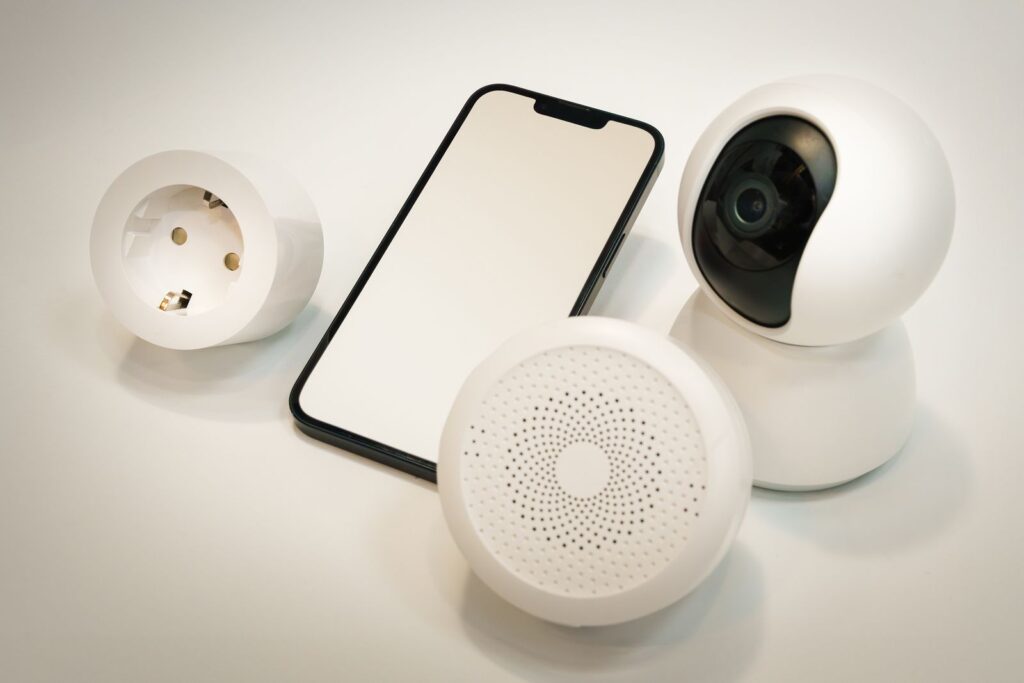
Smart home gadgets are convenient little helpers. A video doorbell can show you who is on the porch. A smart TV can remember your favorite shows. A thermostat can learn when you like the house warm, cool, or somewhere between cozy cabin and office refrigerator. But every connected gadget is also a tiny computer living in your home. That does not mean you need to panic or start interrogating the toaster. It does mean your smart devices deserve a few basic house rules.
Quick takeaway: Treat smart devices like digital houseguests. Know what they are, keep them updated, give them only the access they need, and do not let every gadget have a key to the whole house.
What This Means in Plain English
A smart device is any gadget that connects to the internet or your home network. That includes cameras, doorbells, TVs, speakers, thermostats, baby monitors, light bulbs, plugs, appliances, and even some garage door openers. If it has an app, asks for Wi-Fi, or updates itself, it is probably a small computer with a specific job.
That computer may have a camera, microphone, location setting, account login, cloud storage, or remote access feature. Those features can be useful. They can also collect more information than you realize if the settings are too open, the password is weak, or the device has not been updated in years.
The goal is not to turn your home into a technology bunker. The goal is to make sure your digital houseguests are polite. They can help with the lights, answer the door, and play music in the kitchen. They do not need to wander into every room, copy the house keys, and invite unknown friends over for snacks.
Why It Matters
Smart devices sit in personal spaces. A camera may face your driveway, living room, nursery, or front porch. A smart speaker may listen for a wake word. A TV may track viewing preferences. A thermostat may learn your schedule. Even when a device is working exactly as designed, it can reveal patterns about your home and family.
Security matters because these devices often connect to the same Wi-Fi network as your phones, laptops, tablets, and work devices. If a poorly secured gadget is compromised, it could become a doorway into your home network or a tool someone uses for unwanted access. In most cases, basic steps dramatically reduce the risk.
Privacy matters too. Some devices share video clips with other users, store recordings in the cloud, or allow integrations with other apps and services. Those settings are easy to approve once and forget. A quick review can help you avoid accidental oversharing.
What People Often Get Wrong
Smart home security can feel mysterious because the devices are so ordinary. They blend into daily life. That is exactly why a few common misunderstandings are worth clearing up:
- Thinking small gadgets do not matter: A smart plug or light bulb may seem harmless, but it still connects to your network and may rely on an online account.
- Leaving default passwords in place: If a device or account came with a simple default password, change it. Default settings are often designed for easy setup, not long-term safety.
- Assuming updates happen forever: Devices eventually stop receiving security updates. An unsupported gadget is like a houseguest who stopped answering background-check questions.
- Sharing camera access too casually: Family sharing can be useful, but old roommates, contractors, former partners, or unused accounts should not keep access forever.
- Putting every device on the main Wi-Fi: When possible, smart gadgets are better on a guest or separate smart-device network, away from computers that hold more sensitive information.
A Real-World Example
Imagine you buy a video doorbell, two smart light bulbs, and a smart TV during a holiday sale. You install the apps, connect everything to Wi-Fi, and move on with your life. Two years later, the doorbell still works, the TV still streams, and the lights still turn purple for movie night because apparently that is essential.
But one family member who used to access the doorbell app no longer lives in the home. The TV has several privacy settings you never reviewed. The light bulbs are on the same Wi-Fi network as your work laptop. The doorbell account uses a password you also used on an old shopping site. None of this means disaster is waiting outside with a clipboard. It just means the digital houseguests need a quick check-in.
Ronin Tip: Walk through your home once or twice a year and make a smart-device inventory. If it connects to Wi-Fi, write it down, check for updates, review who has access, and decide whether it still deserves a spot in the house.
How to Handle It Safely
You do not need to secure every device perfectly in one afternoon. Start with the devices that can see, hear, unlock, record, or control important parts of your home. Cameras, doorbells, smart locks, garage openers, baby monitors, routers, and voice assistants deserve attention first.
Change Default Passwords and Use Strong Logins
For each smart device account, use a strong, unique password or passphrase. A passphrase is a longer password made from words you can remember, which makes it easier to use something strong without needing to memorize keyboard soup. Technology Ronin has a helpful guide on using passphrases if you want a simple way to make better passwords.
If the device account offers multi-factor authentication, turn it on. Multi-factor authentication, often called MFA or 2FA, asks for a second proof when you sign in, such as an app prompt or code. It helps protect the account even if someone learns the password.
Keep Devices and Apps Updated
Updates often fix security problems, not just add features or move buttons to places nobody asked for. Open the app for each major smart device and check for firmware or software updates. Also update the phone apps you use to control those devices.
If a device no longer receives updates from the manufacturer, consider replacing it, especially if it has a camera, microphone, lock control, or remote access. You do not have to replace every old gadget immediately, but unsupported devices should move up the retirement list.
Use a Guest or Smart-Device Wi-Fi Network
Many routers let you create a guest network. Some newer routers also offer an IoT network, which is a separate network for smart devices. IoT stands for Internet of Things, which is the industry term for connected gadgets. A separate network helps keep smart devices away from your main computers and phones.
Think of it like seating arrangements. Your laptop with tax documents gets the dining room. The smart light bulb can hang out on the porch. Both are welcome, but they do not need the same level of access.
Review Cameras, Microphones, and Sharing Permissions
Check who can view camera feeds, doorbell recordings, smart lock activity, and shared home controls. Remove people, devices, or integrations you no longer use. Review whether recordings are stored in the cloud, how long they are kept, and whether sharing options are turned on.
Also look for features you do not need, such as public sharing, voice purchasing, remote access, or automatic integrations with other services. If a feature is not useful to you, turning it off can reduce risk and clutter.
What You Can Do Today
You do not have to fix everything at once. Start with a few simple steps:
- Make a device list: Walk through your home and note every smart camera, doorbell, TV, speaker, thermostat, lock, plug, bulb, appliance, and hub.
- Update the important devices first: Check cameras, doorbells, smart locks, routers, garage openers, and baby monitors for firmware and app updates.
- Change weak or reused passwords: Use strong, unique passwords or passphrases for smart-device accounts, especially anything with cameras or remote access.
- Turn on MFA where available: Add the extra sign-in step for accounts that control cameras, doorbells, locks, or home automation hubs.
- Create a guest or IoT Wi-Fi network: Move smart gadgets to a separate network if your router supports it.
- Review sharing permissions: Remove old users, unused integrations, and devices you do not recognize from smart home apps.
- Retire unsupported gadgets: Unplug or replace devices that no longer receive updates, especially if they can record, unlock, or connect remotely.
When to Get Help
Get help if you see unfamiliar users in a camera or smart home app, notice settings changing by themselves, receive login alerts you did not trigger, cannot update an important device, or are unsure how to separate smart devices from your main Wi-Fi network.
You may also want help if you are setting up smart locks, security cameras, garage door openers, or devices for an elderly parent, rental property, or small business. Those situations can involve more people, more permissions, and more opportunities for confusion. A trusted technician can help review the router, accounts, updates, and sharing settings without turning your house into a command center with blinking lights and dramatic music.
The Bottom Line
Smart home devices can be genuinely useful. They can make daily life easier, help you keep an eye on deliveries, save energy, and automate small routines. The key is to remember that they are not just appliances. They are connected computers with accounts, settings, updates, and permissions.
Treat them like digital houseguests. Know who they are, where they are staying, what they can access, and whether they still belong in your home. A few practical steps like better passwords, updates, separate Wi-Fi, permission reviews, and retiring unsupported devices can make your smart home feel both convenient and calmer.
Want a Hand From a Local Tech?
If you would rather have someone set this up with you, that is what we do. Technology Ronin offers friendly home IT & tech support for homes and small businesses in the Denver metro and surrounding areas, onsite or remote.
Quick Questions
Should smart devices go on a guest network?
Yes. A separate guest network keeps them away from your computers and personal files.
What is the most common smart-home mistake?
Leaving the default password in place. Change it first.
Helpful Resources
For readers who want to learn more, these trusted resources are a good place to start: